
Choose to edit the properties of any existing timetable listed in the Timetable Manager module:

Each timetable listed in the module can be marked as 'published', 'preliminary' or 'in development' depending on its stage of use. Change the properties of timetables as they are developed and your requirements of them change.
You can change the name and publication settings of your timetable without affecting the structure of it. For example, choose to set a timetable for development when it is first imported and then change it to preliminary and published via wizard bar once it is ready for review by teaching staff. This saves time having to recreate a completely new timetable at each stage of development.
To edit your school timetable properties, follow the steps below:
- Open the Timetable Manager module and either:
In your selected timetable tab, select Edit Timetable Properties from the options on the right of the screen.
or- In the Configuration tab, select Manage Timetables from the options on the right of the screen.
- Click
 next to the timetable you want to edit.
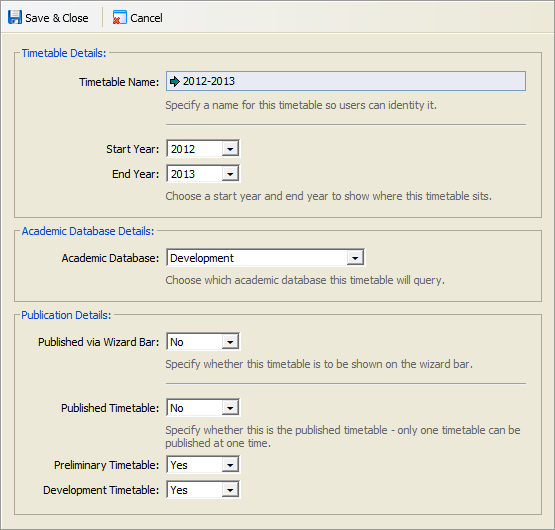
Complete the sections available, as required.
Section
Explanation
Timetable Details
The information in this section is for display purposes only. Changing it will not change the way that the timetable functions.
Timetable Name. Use a name that is concise and easy to identify. Also indicate if the timetable is in development (Dev) or Preliminary (Pre), this makes it easy to identify timetables displayed in the module.
Start Year. Use the drop down list to select the year at the start of the academic year.
End Year. Use the drop down list to select the year at the end of the academic year.
The start and end of the academic year is shown in the timetable tab in brackets, for example a Start Year of 2011 and End Year of 2012 is displayed (11/12).
Academic Database Details
Do not change the selection displayed.
The development database is held in the Teaching Manager module and uses information for the next academic year, where students in sets and forms are different to those in the current academic year. Use the Teaching Manager module when you are ready to rollover the development database into a new academic year and use it as the current (live) database. Only use this option when changing to a new academic year (in the summer holiday).
Publication Details
Published via Wizard Bar. Select 'Yes' to display the timetable in the wizard bar, this allows all users to view the timetable. More than one timetable can be viewed in the wizard bar, each is clearly labelled. This is useful for displaying both a Published Timetable, which is currently in use, and a Preliminary Timetable before it goes live. Teaching staff can check their Preliminary Timetable and contact the Timetable Administrator if any amendments need to be made. See below for an example of how timetables are published in the wizard bar.
Published Timetable. Only one of the timetables you setup can be the Published Timetable which is used throughout iSAMS by students and teaching staff. This is the timetable seen when you click a timetable icon next to a student's name in the Registration module and the timetable displayed in the desktop for teaching staff. Selecting 'Yes' here makes the Preliminary and Development Timetable options unavailable.
Preliminary Timetable. Select 'Yes' when your timetable has been developed and it is ready to be checked by teaching staff. Select to publish a Preliminary Timetable via the wizard bar (see above) to allow the timetable to be reviewed by teachers.
Development Timetable. Select 'Yes' to indicate that the timetable is in development. Use this when developing a timetable for the next academic year or for testing a timetable when changes have been made. It is possible to copy a Published Timetable and select it to be a Development Timetable whilst changes are made to it, this is useful when new teaching staff start during an academic year and the timetable has to be checked before being published.
Click Save & Close.
Your timetable properties have now been edited. Changes are now displayed in the timetable tab and listed in Manage Timetables.


