
Use the Configuration tab in the Teaching Manager module after you have made any changes to data in the module. This ensures that the module functions as expected.
There are two tools available in under the Useful Tools options:
- Synchronise Academic Database. Runs a check on each teacher's and associated teacher's subjects and sets.
- Remove Duplicate Pupil Sets. Checks pupil sets for duplicate records.
If problems continue you may wish to re-install the module completely.
Synchronise Academic Database
Check through teacher set and subject data in the module. Any anomalies in the data are listed for you and can be corrected automatically.
For example, teachers listed for subjects where no sets or forms have been listed for them. Running the tool removes the teacher from the subject.
Use this tool when you have made any changes to subjects, sets or forms.
To run the Synchronise Academic Database tool, follow the steps below:
- In the Teaching Manager module, select the Configuration tab.
- Select the Useful Tools option from the right hand menu.
- In Synchronise Academic Database, click Run.
A popup window is displayed listing the results of the check: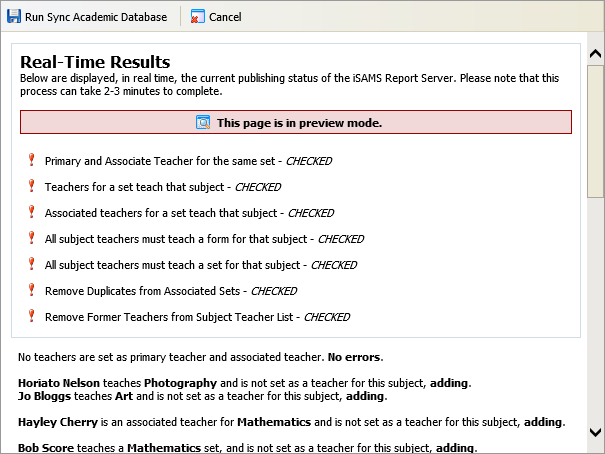
- Scroll through the window to review all the amendments that are to be made to data in the module.
- Click
 Run Sync Academic Database to confirm the amendments.
Information in the popup window confirms that the changes have been made: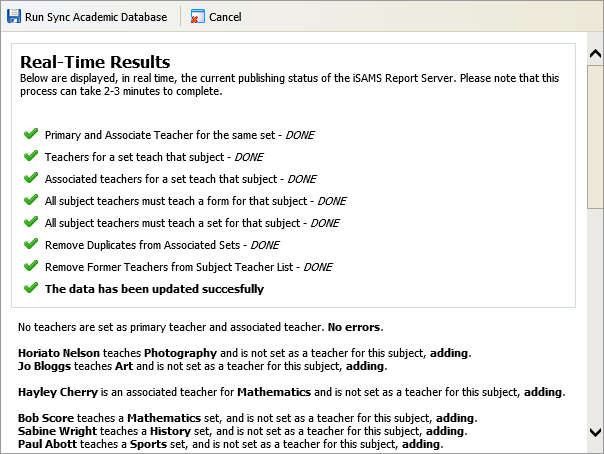
- Click Cancel to return to the Useful Tools option.
Remove Duplicate Pupil Sets
Check pupil sets in the module for duplicate records and former pupils. Any anomalies in data are listed for you and can be corrected automatically.
For example, pupils assigned to a set more than once. Running the tool removes the duplicate record from the set.
Use this tool when you have made any changes to subjects, sets or forms.
To run the Remove Duplicate Pupil Sets tool, follow the steps below:
- In the Teaching Manager module, select the Configuration tab.
- Select the Useful Tools option from the right hand menu.
- In Remove Duplicate Pupil Sets, click Run.
A popup window is displayed listing the results of the check: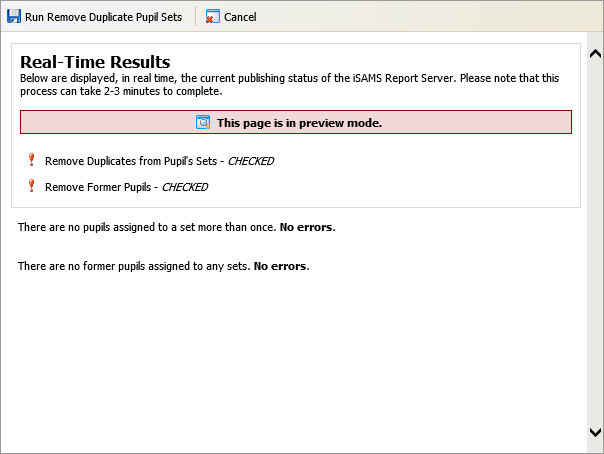
- Scroll through the window to review all the amendments that are to be made to data in the module.
- Click Run Remove Duplicate Pupil Sets to confirm the amendments.
Information in the popup window confirms that the changes have been made: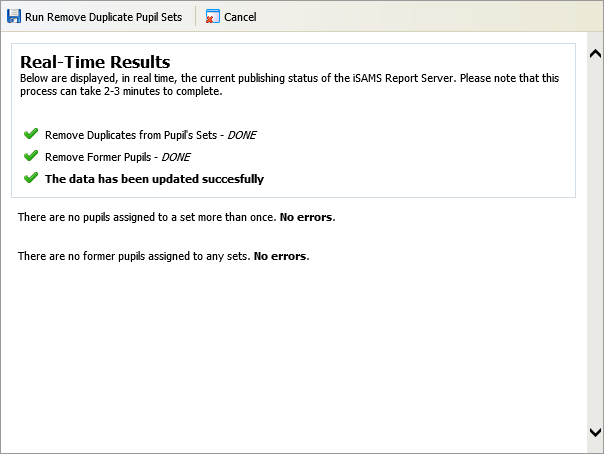
- Click Cancel to return to the Useful Tools option.
Re-Install the Teaching Manager Module
Use the Re-Install Module option to re-install the entire Teaching Manager module.
Re-installing the Teaching Manager module deletes all current content and settings. Once this option is selected you will need to set up the module as you would when you use it for the first time.
To re-install the module, follow the steps below:
- In the Teaching Manager module, select the Configuration tab.
- Select the Re-Install Module option from the right hand menu.
- Click Re-Install Module.
You are prompted Are you sure you want to re-install this module? - Select Yes.
All content is removed from the module.