
Use the Configuration tab in the Teaching Manager module to set up and manage teaching block groups. Teaching in block groups is optional. Once block groups are set up you can associate them with subject sets.
- In the Teaching Manager module, select the Configuration tab.
- Select the Manage Block Groups option from the right hand menu.
The Manage Block Groups option is displayed: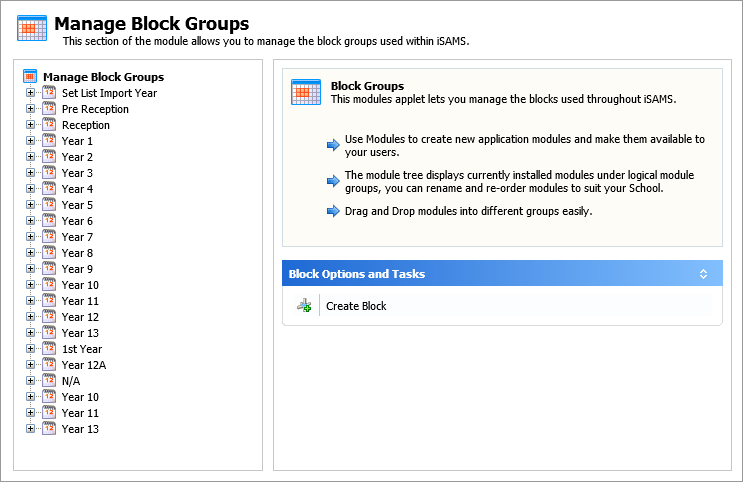
- Choose to:
- Add New Block Groups.
- Arrange Block Groups. Change the order that blocks are displayed.
Add New Block Groups
Add teaching block groups to each year group in your school. You can then associate sets in each year group with a block group.
- Click
 Create Block in the Block Options and Tasks section.
A popup window is displayed: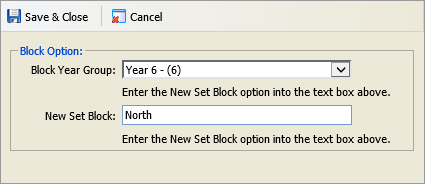
- Select a year group for the block group.
- In New Set Block, enter a name for the block group.
- Click
 Save & Close.
You can now start using the block group.
Arrange Block Groups
- Select a year group from the left hand menu.
The Block List is displayed: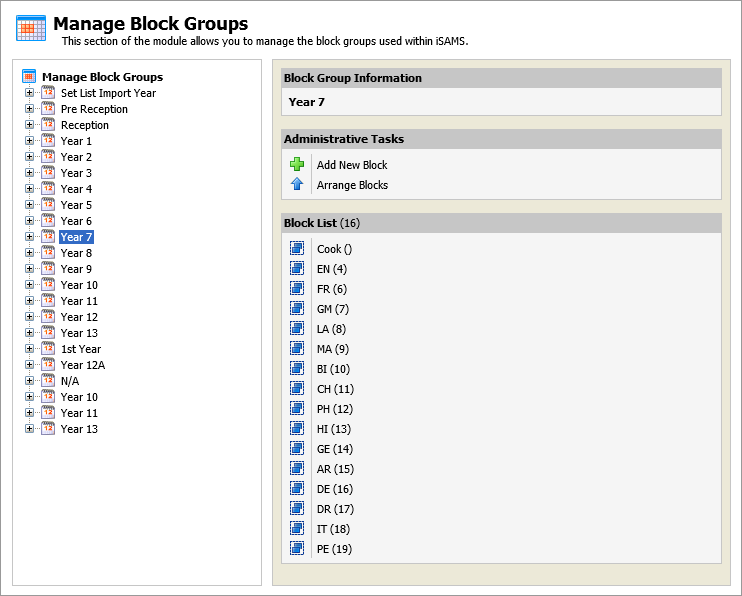
- Click
 Arrange Blocks in the Administrative Tasks section.
A window is displayed: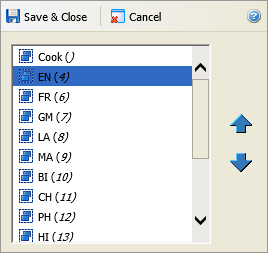
- Select a block group and use the arrows available to move it up or down the list:


- Click Save & Close.
The block groups are displayed throughout the Teaching Manager module in the revised order.