
Use the Configuration tab in the Teaching Manager module to set up and manage maximum set sizes for each subject in your school. Maximum set sizes are allocated for subjects in each year group.
For example, English taught to Year 1 can have a maximum set size of 10 and English taught in Year 6 a maximum set size of 20.
- In the Teaching Manager module, select the Configuration tab.
- Select the Manage Set Size Rules option from the right hand menu to display this screen:
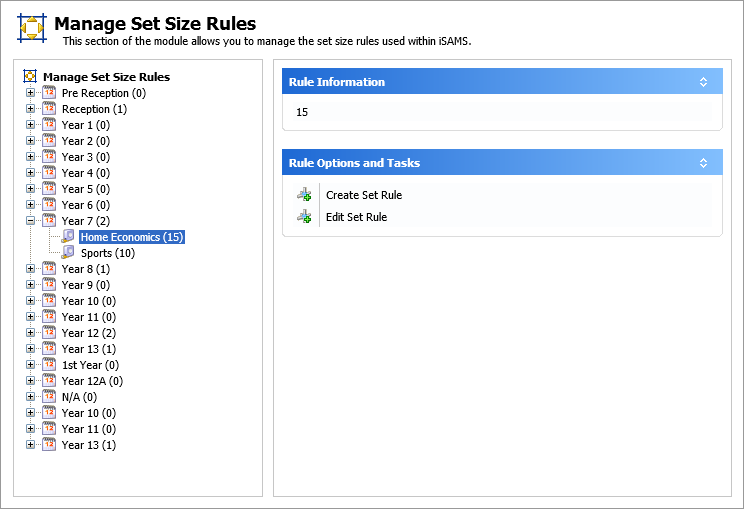
- Choose to:
- Create Set Size Rules.
- Edit Set Size Rules. Change the maximum set size listed for a subject.
Set size rules only apply to sets. You cannot set up maximum form group sizes from this option.
Create Set Size Rules
Set up a maximum set size for each subject taught in your school. You must set up each year group which is taught the subject separately.
For example, English taught to Year 1 can have a different maximum set size to English taught in Year 6.
- Click
 Create Set Rule. A window is displayed: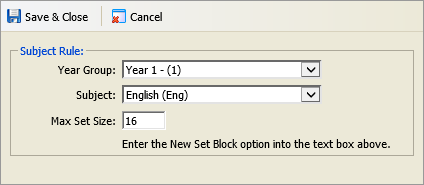
- Select the Year Group and Subject for the set size rule you want to create.
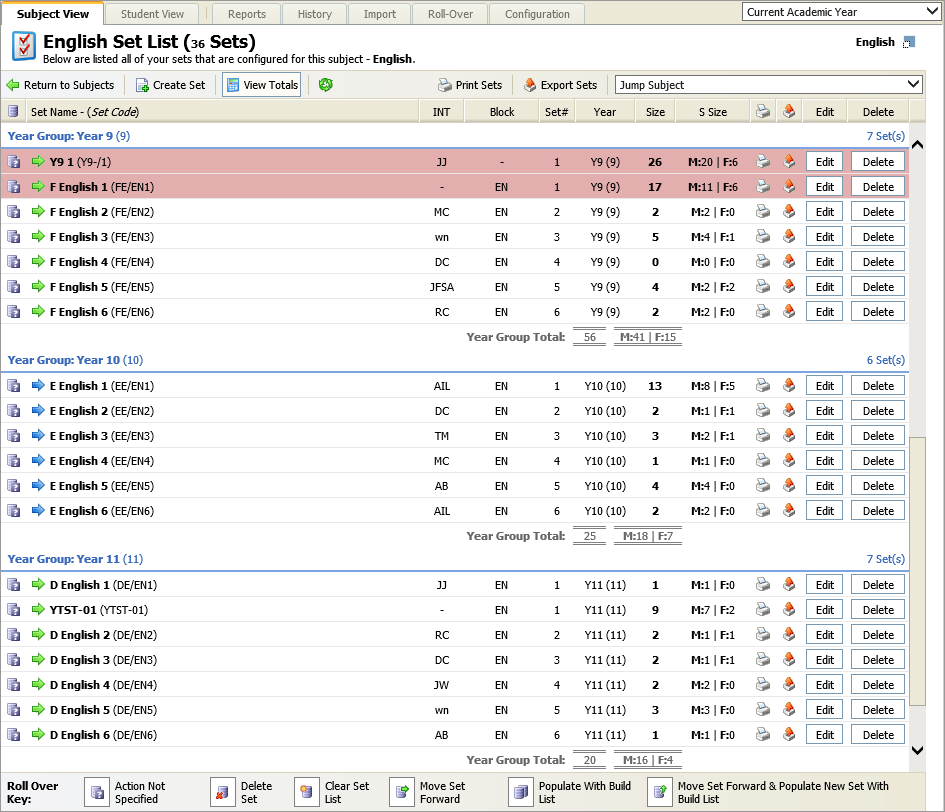
- Enter the Maximum Set Size for your selected year group and subject. If the set size exceeds this limit it is highlighted red in the Subject View tab:
- Click
 Save & Close.
The set size rule is listed in the Manage Set Size Rules option. The maximum set size is shown in brackets next to each subject listed.
Edit Set Size Rules
- Select the year group and subject you want to edit from the left hand column.
- Click Edit Set Rule.
A window is displayed: - Use the drop down lists to select a new Year Group and Subject for the set size rule.
- Enter the Maximum Set Size for your selected year group and subject. If the set size exceeds this limit it is highlighted red in the Subject View tab:
- Click Save & Close to return to the Manage Set Size Rules option. The maximum set size is shown in brackets next to each subject listed.