
Use the Configuration tab in the Registration module to set up the navigation and edit settings for the School Register tab. These settings help you to move between, compare and edit registration periods taken over a period of time.
Only users with the relevant access to the Registration module can navigate between registers.
Remember that the school register is an official document. Please proceed with caution when editing records.
- Open the Registration module and select the Configuration tab.
- Select Navigation Settings from the right hand menu to display this screen:
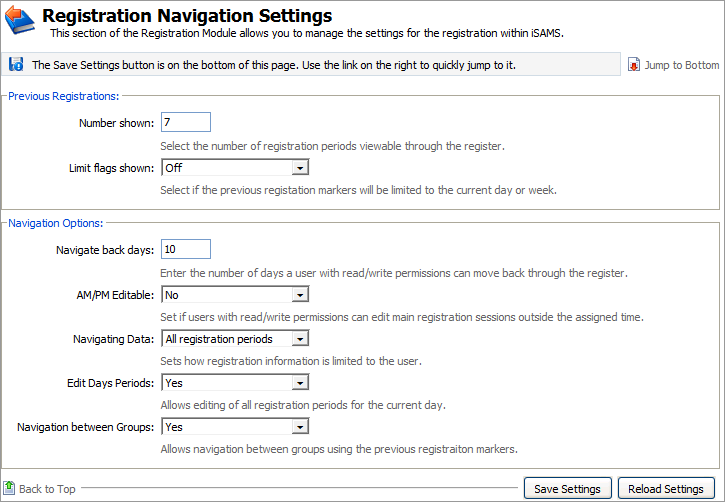
Work through the settings shown:
Setting
Explanation
Previous Registrations
- Number shown. Enter the number of registration periods you want to display in the School Register tab. These display as marker boxes. The number of periods selected affects the speed the register will take to load.
- Limit flags shown. Use the drop down list to select whether the display of previous registration markers is limited to the current day or week. Selecting 'Off' displays all the registration markers for the number of registration periods selected.
Navigation Options
- Navigate back days. Enter the number of days users with read/write permissions can move back through previous registers. Navigate back days cannot exceed previous registration periods shown.
- AM/PM Editable. Use the drop down list to select whether users with read/write access permission can edit the main AM/PM registration sessions outside of the registration period. Editing main registration sessions after the period has ended would be amending an official document. Selecting No here prevents this. This does not affect edit access for those with full access permission.
- Navigating Data. Use the drop down list to select which registration information is available to view and edit.
- Edit Days Periods. Use the drop down list to select whether the registration periods for the current day can be edited. This is useful if your establishment takes a register in each teaching period. Select 'Yes' to allow a register to be taken for both periods at the start of a double teaching period. This doesn't prevent the main AM/PM registration periods being locked to prevent editing.
- Navigation between Groups. Use the drop down list to select whether a student's registration markers can be used to navigate between other registrations. Selecting 'Yes' here allows you to move between a student's registration groups and sets, regardless of who their tutor is. Click on a previous registration marker to move to another registration period.
Here is an example of how your selections are shown in the School Register screen:
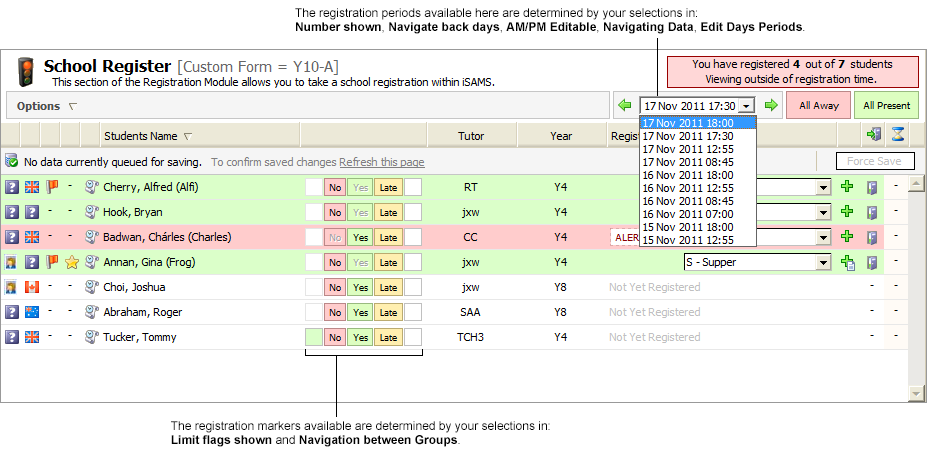
When the details are as required, click Save Settings.
Use the Reload Settings button to cancel any changes you have made to these settings, i.e. reset the values as they were when you first accessed this form. The Reload Settings button only cancels changes if you have not already saved them.