
Once you have opened a pupil record in the Pupil Manager module, use the Notes tab to create and manage pupil notes.
Pupil notes in the Pupil Manager module are for internal use only, they are only listed in the Pupil Manager module. Pupil notes can be used to log general information about the selected pupil, for example their interest in applying for a scholarship. These are different from Notes listed elsewhere in iSAMS.
- Use the AutoComplete checkbox in the top of the screen for fields to capitalise automatically as you complete them. Uncheck the AutoComplete box to override automatic capitalisation.
- Click
 next to a field to add a new option to a drop down list.
- In the Pupil Manager module, select a pupil records tab:

- Search and select a pupil record to work with and select the Notes tab:

- Use the functions available to:
Add a Pupil Note
- In the Add Pupil Note section, select a Note Type. Click
 to add a new option to the drop down list, if required. Note Types can be selected when generating a report of pupil notes.
 - Enter your note in the Description field.
- Select a Note Date.
- Click
 Update Data to save the new data.
Edit a Pupil Note
- In the Previous Pupil Notes section, click
 next to your selected pupil note:
The pupil note details are displayed in a popup window: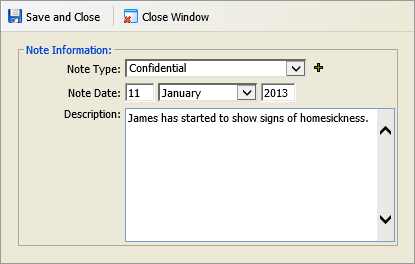
- Select a Note Type. Click to add a new option to the drop down list, if required.
- Select a Note Date.
- Edit your note in the Description field.
- Click Save and Close to return to the Notes tab.
Delete a Pupil Note
Delete a pupil note if it is no longer relevant.
Deleting a pupil note removes it permanently from a pupil record.
- In the Previous Pupil Notes section, click
 next to your selected pupil note:
You are prompted Are you sure you want to delete this note from this pupil? - Select Yes.
The pupil note is deleted.