
Use the Configuration tab in the Mobile & Tablet Manager applet to define and reset the linking code required for devices to access your system through the iSAMS mobile apps.
Choose to view an activity log, detailing changes made to the mobile app, and specify the administrator details to be shown to users in the app. You can also perform a master reset of the mobile apps from this tab.
Choose from the following options in the Applet Configuration section of the menu to the right of the screen:
- Manage Device Linking. Use this option to change the linking code.
- Applet Install & Reset Options. Use this option to reset either the linking code or the mobile app to their default settings.
- View Mobile & Tablet Logs. Use this option to view an activity log of changes made to the mobile app.
- Mobile & Tablet Configuration. Use this option to enable the mobile app for use and edit the administrator's contact details to be shown in the mobile app.
Manage Device Linking
Change the linking code associated with your iSAMS system from the Manage Device Linking screen. Use this to change the four digit code required for a user to log into iSAMS from each iSAMS mobile app for the first time.
To change the linking code, follow the steps below:
- Select the Mobile & Tablet Manager applet from iSAMS Control Panel.
The Current Status screen is usually displayed first when you select Mobile & Tablet Manager. - Select the Configuration tab at the top of the screen.
- Select the
 Manage Device Linking option from the menu to the right of the screen:
The Manage Device Linking screen is displayed: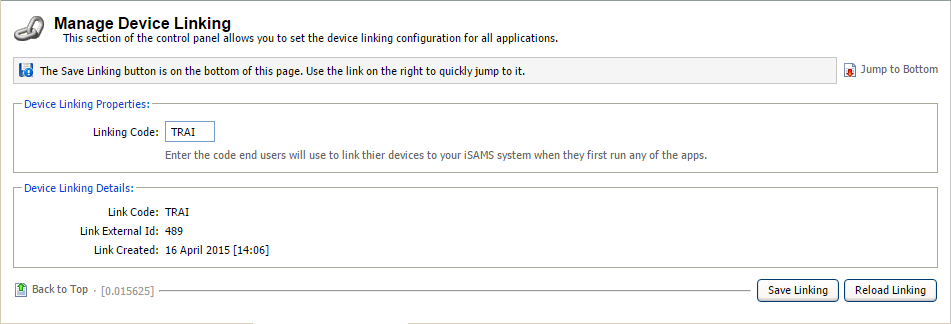
- Edit the code in the Linking Code field.
- Click Save Linking when finished. To revert to previously saved settings, click Reload Linking.
Applet Install & Reset Options
Choose to reset the linking code required for users to access your iSAMS system and fully reset the iSAMS mobile apps from the Applet Install & Reset Options screen. Resetting the linking code requires mobile users to re-link their device with iSAMS using the code in the Manage Device Linking option. This is a useful security function and may also be used when you are testing the app before general use.
You can also fully reset the mobile app to restore the app to its default settings.
Re-installing the mobile applet clears all data, including settings, from the app. You cannot undo this action.
To use the Applet Install & Reset Options screen, follow the steps below:
- Select the Mobile & Tablet Manager applet from iSAMS Control Panel.
The Current Status screen is usually displayed first when you select Mobile & Tablet Manager. - Select the Configuration tab at the top of the screen.
- Select the
 Applet Install & Reset Options option from the menu to the right of the screen:
The Applet Install & Reset Options screen is displayed:
- Click Reset Linking to reset the linking code for your iSAMS system.
To re-install the mobile applet, click Re-Install Applet.
Re-installing the mobile applet clears all data, including settings, from the app. You cannot undo this action.
- To refresh the list of available options, click Reload Options.
View Mobile & Tablet Logs
View and print an audit log of changes made to the iSAMS mobile apps in the View Mobile & Tablet Logs option. Use this option to trace changes to the mobile app, such as the location of edited settings, whilst you are testing it. This is useful for troubleshooting purposes.
To view the log of changes, follow the steps below:
- Select the Mobile & Tablet Manager applet from iSAMS Control Panel.
The Current Status screen is usually displayed first when you select Mobile & Tablet Manager. - Select the Configuration tab at the top of the screen.
- Select the
 View Mobile & Tablet Logs option from the menu to the right of the screen:
The View Mobile & Tablet Management Logs screen is displayed:
- Click
 Print Audit to work with a hard copy of the audit log.
 - Click on a Username to view more detail about the user's account profile. You can view and print a quick summary of the user (such as their Full Name and E-Mail Address) and details of the user's last five login attempts, such as associated dates, times and IP addresses. This is useful for accessing the user's contact details quickly should you need to contact them about a changed app setting.
A popup window is displayed showing the user's information:
- Click Print Information to work with a hard copy of the user's information. Click Close Window when finished.
Mobile & Tablet Configuration
Choose to activate the iSAMS mobile apps and change the mobile administrator's contact details in the Mobile & Tablet Configuration screen. You can choose to stop the use of the mobile app with your system, for example if there are errors in the mobile app that require fixing before further use. You can also choose to show the mobile app administrator's contact details. These details are shown to the user when an error in the mobile app occurs.
To use the Mobile & Tablet Configuration screen, follow the steps below:
- Select the Mobile & Tablet Manager applet from iSAMS Control Panel.
The Current Status screen is usually displayed first when you select Mobile & Tablet Manager. - Select the Configuration tab at the top of the screen.
- Select the
 Mobile & Tablet Configuration option from the menu to the right of the screen:
The Mobile & Tablet Configuration screen is displayed: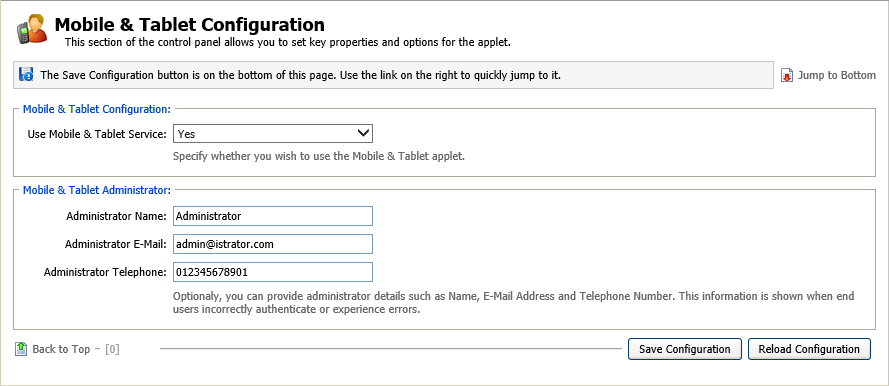
- Select 'Yes' from the drop-down list to enable the Mobile app with your iSAMS system.
- Complete the Mobile & Tablet Administrator section with a support team member's contact details, such as e-mail address. This is optional.
These details are shown when the mobile user encounters an error in the app. - Click Save Configuration when finished. To revert to previously saved settings, click Reload Configuration.