
Use the Candidate Timetables report option in the External Exams Manager module to run a report of exams for a specified candidate or group of candidates. This is useful for printing off and distributing to candidates.
Candidate timetables can also be linked to the Parent Portal and Pupil Portal for timetables to be viewed and checked online.
To produce a candidate timetables report:
- Open the External Exams Manager module and select the Timetables tab.
- Select Candidate Timetables from the Reports category in the right hand menu. The Report Wizard window is displayed:

- Reporting Services. The 'In-Built Report' is preselected and can only be changed by iSAMS HelpDesk.
- Select the exam Cycle that you want to report on.
- Select your preferred Report Format. Recommendations for each format are shown onscreen.
- Select the Candidate Status that you want to report on. Choose from either:
- 'Current'.
- 'Private'. This includes returning candidates.
- 'All' candidates. This is useful if private and returning candidates are sitting exams alongside current candidates.
- Select the Filter Options tab and choose the students and qualifications that you want to include in the report:
- Either:
- Enter the name of a specific student in the Single Student section.
or - Select a year group, form, boarding or academic house in the Student Group section.
- Enter the name of a specific student in the Single Student section.
- Apply the Qualification Filters if required. Choose the qualifications and levels of qualification that you want to include in the report. Click
 to view the full lists of qualifications and levels.
- Either:
- Select the Custom Text tab and enter any text that you want to add to the report, such as instructions what to do on exam day. Click Save if you want to reuse the text for future reports. This is only displayed on .html and .doc formats.
- Select the Report Specific Options tab:
- Use the checkboxes to select the information shown on the report.
- Select the order to display candidates in the report.
- Click Produce Report, an example of an .html report is shown below:
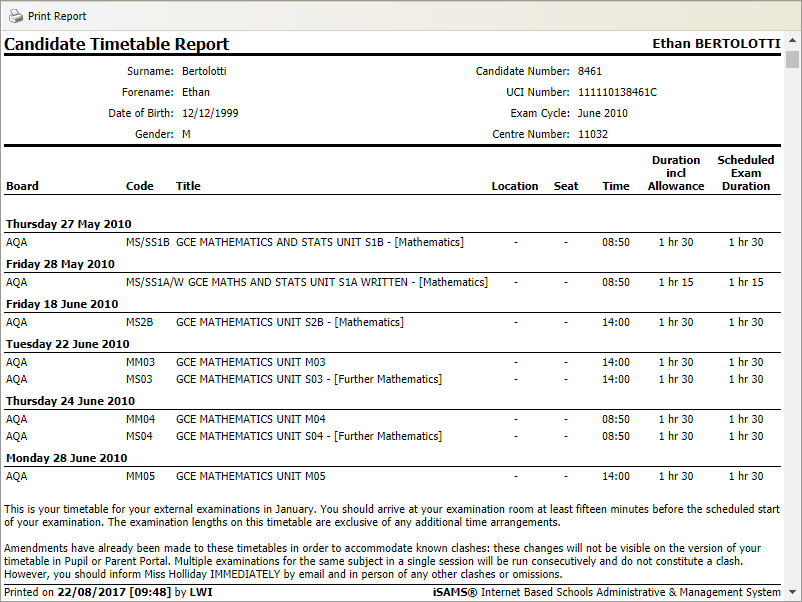
- Scroll through the report to see each candidate in the report.
- Choose to print or save the report as required. When you print the Word report each candidate is printed on a separate page so can conveniently be posted off to parents and candidates.